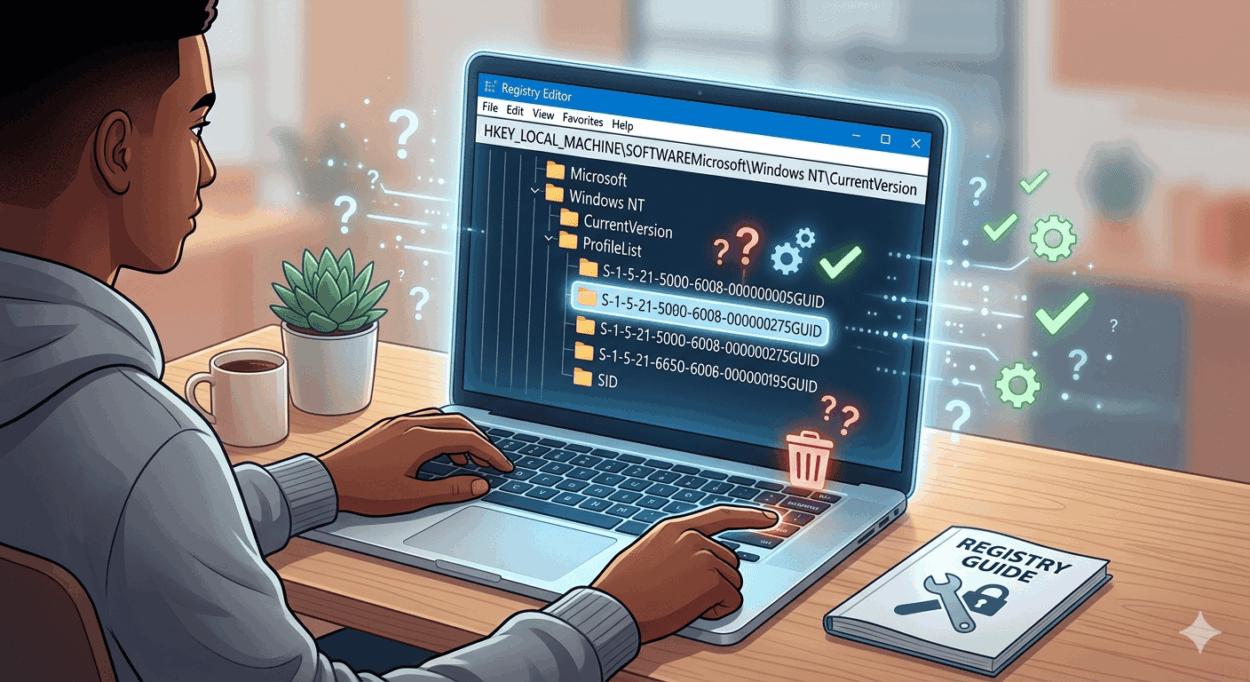
Deleting a user profile in Windows is not as difficult as you think, but if you are not familiar with the process, then it can appear overwhelming. So, if you want to know how to delete user profile Windows 10, then this guide will present you with the correct steps that you need to follow. Make sure that you do not miss any step, as this can create issues for you.
Prerequisites before you start
Editing the Windows registry is quite a powerful process, and it should be handled with care, as any incorrect change can affect the stability of the system. Before you start, you need to make sure that your essential data is backed up, and you have also created a system restore point. Also, you need to log in using an administrator account, as you cannot delete the same profile with which you are logged in.
Step 1: Locate the User Profile
The first thing that you need to do is determine the name of the profile you need to remove. Access ‘File Explorer’ and look for the ‘C:\Users’ section. Here, you will see different folders for every user account. Look and note down the exact name of the profile you are interested in deleting.
Step 2: Open Registry Editor
Hit Windows + R to bring up the Run box. Type regedit and hit Enter. That opens the Registry Editor. If User Account Control pops up, just click “Yes” to go on.
Step 3: Navigate to Profile List
Now, you need to follow the path that we have mentioned here in the Registry Editor:
HKEY_LOCAL_MACHINE\SOFTWARE\Microsoft\Windows NT\CurrentVersion\ProfileListHere, you need to look for the ProfileList folder with different subkeys. Every subkey represents a different user profile.
Step 4: Find the Right Profile Key
Click through each subkey and look for the value called ProfileImagePath on the right. This shows the path to the user’s profile folder, like C:\Users\John. Make sure this matches the profile you want to remove.
Step 5: Delete the Registry Entry
Once you have located the right key, you need to right-click on it to delete it. Confirm the action when it is prompted on the screen to complete the main steps to Windows 10 delete user profile registry.
Step 6: Delete the Profile Folder
Once you’ve deleted the registry key, head over to C:\Users and manually delete that user’s folder. This way, you don’t leave any leftover files behind.
Step 7: Restart Your Computer
Lastly, you need to restart your computer. When it boots back up, the user profile you deleted will be gone, and you can use the device with a different user profile.
Important Tips and Warnings
Always double-check which profile you’re deleting; getting the wrong one can mess things up for other users. Don’t touch system profiles like Default or Public. If you’re not sure, back up the registry before you start making changes. You can also access and look up more information on the website Datarecovee, and in case of data loss you can try their data recovery tool as it comes with free tier as well.

Leave a Comment