


Quick Fixes for MTP Host Issues on Any Android Device
The MTP Host Android issue is one of the most frustrating problems users face when trying to connect their phone to a PC via USB. MTP (Media Transfer Protocol) is responsible for allowing file...

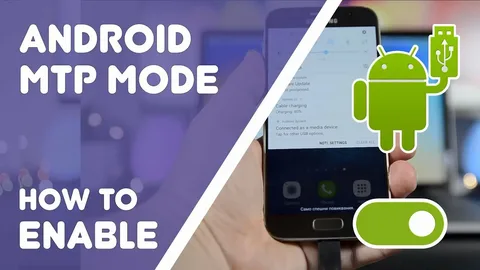
The MTP Host Android issue is one of the most frustrating problems users face when trying to connect their phone to a PC via USB. MTP (Media Transfer Protocol) is responsible for allowing file transfer between Android devices and computers, but when it fails, your device may not be recognized, or file transfers may stop working completely.
Table Of Content
This issue can appear due to faulty cables, corrupted system cache, outdated drivers, or incorrect settings. The good news is that most mtp host android problems can be fixed quickly with simple troubleshooting steps. In this article, we’ll walk through the most effective solutions to restore smooth file transfer functionality on any Android device.
Understanding the MTP Host Android Problem
The mtp host android error usually occurs when the system responsible for managing file transfers between your Android device and a computer becomes unresponsive or stuck. Instead of allowing seamless communication, the MTP service may freeze or crash in the background.
This can lead to symptoms such as the computer not detecting your phone, the “USB device not recognized” error, or the file transfer mode not appearing at all. In many cases, users assume it is a hardware issue, but it is often related to software glitches within the Android system.
Restart Your Device and Refresh Connections
One of the simplest ways to fix mtp host android issues is by restarting your phone. A reboot clears temporary system glitches and refreshes background services, including MTP.
After restarting, reconnect your device to the computer using a USB cable and check if file transfer mode appears. You can also try restarting your computer, as Windows drivers sometimes fail to load properly and need a reset to recognize Android devices again.
Check and Replace USB Cable or Port Issues
A damaged or low-quality USB cable is one of the most common reasons for mtp host android failures. Not all cables support data transfer—some are charge-only, which prevents MTP from working correctly.
Try using an original or high-quality USB cable and connect it to a different USB port on your computer. If possible, avoid USB hubs and connect directly to the main system port. Even a minor physical defect in the cable can interrupt the MTP connection.
Clear Cache for MTP and USB Services
Corrupted cache data can also trigger mtp host android errors. Android stores temporary data for USB and media transfer services, and when this data becomes outdated, it can block proper communication.
To fix this, go to your phone’s Settings, open Apps, and look for system services like “Media Storage” or “USB Settings.” Clear their cache and restart your device. This forces Android to rebuild fresh service data, often resolving hidden software conflicts.
Enable Developer Options and Adjust USB Configuration
Sometimes, the default USB configuration prevents proper MTP communication. Enabling Developer Options can help you manually set the correct mode for file transfer.
Go to Settings > About Phone and tap the Build Number seven times to unlock Developer Options. Then open Developer Options and find “Default USB Configuration.” Set it to “File Transfer (MTP).” This ensures your device always connects in the correct mode when plugged into a computer.
If the mtp host android issue persists, you can also toggle USB debugging on and off, which often resets connection behavior and fixes hidden communication errors.
Conclusion
The mtp host android issue may seem complicated, but in most cases, it is caused by simple software glitches, faulty cables, or incorrect USB settings. By restarting your devices, checking your cable, clearing cache, and adjusting developer settings, you can quickly restore normal file transfer functionality.
If none of these fixes work, the issue may be related to outdated system software or deeper hardware problems. Keeping your Android device updated and using reliable accessories can help prevent future MTP issues and ensure smooth data transfer between your phone and computer.







No Comment! Be the first one.